Introduction:
Hybrid identity remains one of the most common deployment models for organizations migrating to Microsoft Entra ID while continuing to use Active Directory Domain Services (AD DS). Instead of maintaining separate identities in both environments, organizations synchronize their on-premises users, groups, and selected attributes into Microsoft Entra ID, enabling users to access both on-premises and cloud resources with a single identity.
In this article, we’ll explore what Microsoft Entra ID Connect is, how it differs from Microsoft Entra Cloud Sync, why organizations still choose Entra ID Connect, and walk through the configuration of Entra ID Connect in a hybrid environment.
What is Microsoft Entra ID Connect?
Microsoft Entra ID Connect is Microsoft’s identity synchronization solution that connects an on-premises Active Directory forest with Microsoft Entra ID.
It synchronizes identity information such as:
- Users
- Groups
- Contacts
- Password hashes
- Selected Active Directory attributes
This enables users to sign in using the same username and password across:
- Windows Active Directory
- Microsoft 365
- Azure Portal
- Microsoft Teams
- Exchange Online
- SharePoint Online
- Applications integrated with Microsoft Entra ID
Rather than creating cloud-only accounts, organizations can continue managing identities from Active Directory while Microsoft Entra ID becomes the cloud identity provider.
The synchronization engine runs on a Windows Server joined to the Active Directory domain and periodically synchronizes changes to Microsoft Entra ID.
Microsoft Entra ID Connect Sync vs Microsoft Entra Cloud Sync
Although both solutions synchronize Active Directory identities to Microsoft Entra ID, they are built differently and target different scenarios.
| Feature | Microsoft Entra ID Connect | Microsoft Entra Cloud Sync |
|---|---|---|
| Synchronization Engine | Local synchronization server | Lightweight provisioning agent |
| Installation | Dedicated Windows Server | Provisioning Agent |
| Password Hash Sync | Supported | Supported |
| Pass-through Authentication | Supported | Not Supported |
| Federation Support | Supported | Not Supported |
| Device Writeback | Supported | Not Supported |
| Group Writeback | Not Supported | Supported |
| Exchange Hybrid | Fully Supported | Limited |
| Complex Hybrid Deployments | Excellent | Basic |
| High Availability | Staging Mode | Multiple Agents |
| Best For | Enterprise Hybrid Identity | Cloud-first organizations |
When should you choose Entra ID Connect?
Use Microsoft Entra ID Connect when your organization requires:
- Exchange Hybrid deployment
- Pass-through Authentication
- Federation Services
- Device Writeback
- Complex Active Directory topology
- Multiple forests
- Advanced synchronization rules
Prerequisites
Before installing Microsoft Entra ID Connect, ensure the following prerequisites are met:
- Microsoft Entra ID tenant
- Verified custom domain
- Active Directory Domain Services
- Domain Administrator account
- Microsoft Entra Global Administrator account
- Windows Server (2019, 2022, or later)
- Internet connectivity from the synchronization server
- TLS 1.2 enabled
- Latest Windows Updates installed
Installation:
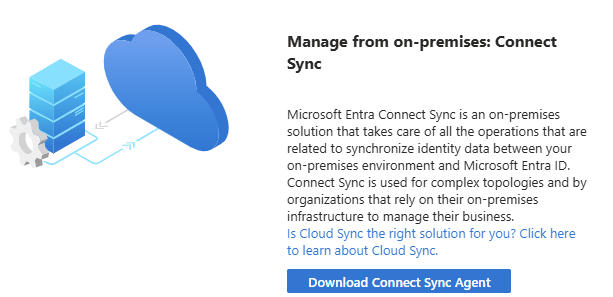
Step 1 – Download Microsoft Entra ID Connect
Download the latest Microsoft Entra ID Connect installer from the Microsoft Entra ID Admin Center
Copy the installer to the server that will host the synchronization service.
Step 2 – Launch the Installation Wizard
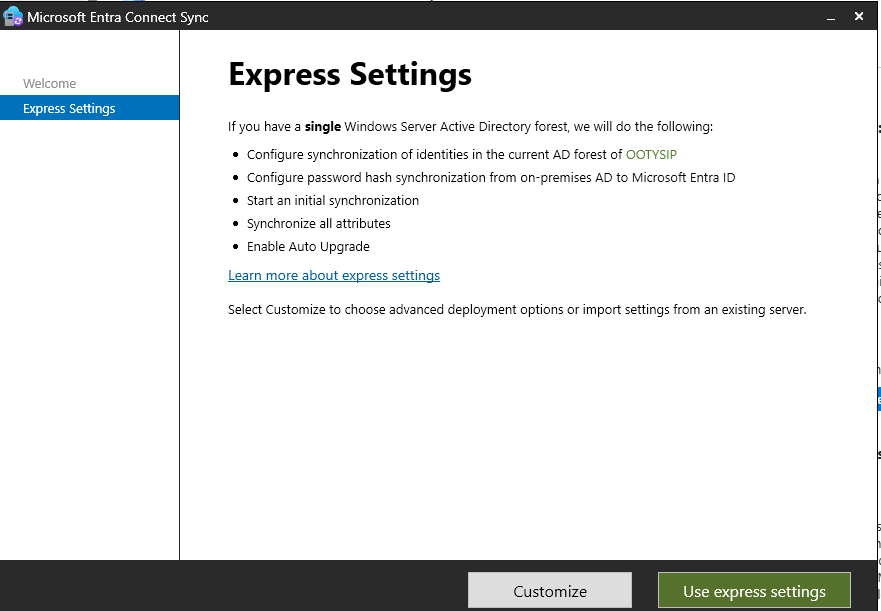
Run AzureADConnect.msi the downloaded installation file
Go with the express setting to install all necessary configurations and components
Step 3 – Sign in to Microsoft Entra ID
Enter your Microsoft Entra Global Administrator credentials.
The wizard verifies:
- Tenant connectivity
- Verified domains
- Required permissions
Step 4 – Connect to Active Directory
Provide:
- Domain Administrator username
- Password
Click Add Directory.
The wizard creates the required service account for synchronization.
Step 5 – Review and Install
Review your configuration.
Click:
Install
The synchronization engine is configured, and the initial synchronization begins.
Verify Synchronization
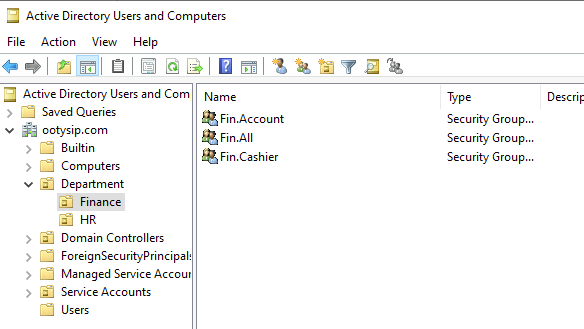
I already have some groups and users in my on-prem AD, as shown in the figure below. Wait for some time and verify whether it is synced to Entra ID
Users

Groups
Let’s check the Users and Groups in Entra ID admin center

You can see all synced Groups in MS Entra ID and the source as Windows Server AD

Synced User with the On-premises sync enabled flag
Summary
Microsoft Entra ID Connect remains the most comprehensive solution for organizations that require a rich hybrid identity experience between Active Directory and Microsoft Entra ID. While Microsoft Entra Cloud Sync offers a lightweight alternative for cloud-first environments, Entra ID Connect remains the preferred choice for enterprises that need advanced synchronization capabilities, such as Exchange Hybrid, Pass-through Authentication, federation, and writeback.


Leave a Reply