Introduction:
By default, local accounts in Azure AD B2C are often configured with the DisablePasswordExpiration policy, which prevents passwords from expiring. While this behavior simplifies user experience, many organizations require periodic password rotation to align with internal security standards and compliance requirements.
One common requirement is to force users to reset their passwords every 90 days.
There are two primary approaches to implementing password expiration in Azure AD B2C:
- Implementing custom password expiration logic using custom policies
- Using the built-in organization password policy configuration
In this article, we will explore both approaches, understand the differences, and implement the recommended approach using the organization’s password policy settings with the Microsoft Graph API.
What We Are Going to Do
In this article, we will configure Azure AD B2C to:
- Expire local account passwords after 90 days
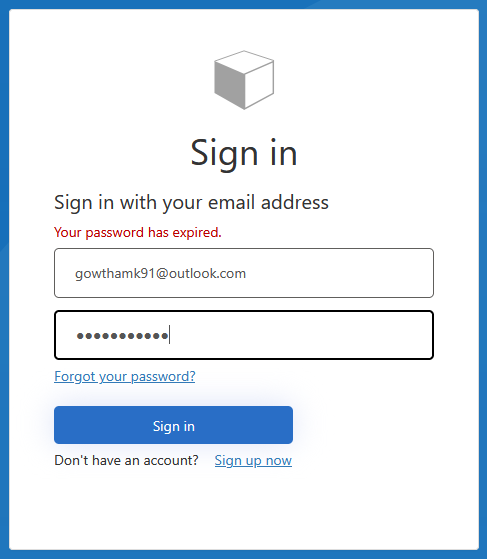
- Force users to reset their password once the password expires
- Remove the DisablePasswordExpiration policy from user accounts
- Configure the custom policy to allow password expiration
- Use Microsoft Graph API to configure organization-level password settings
At the end of this article, your Azure AD B2C tenant will automatically enforce password expiration for local accounts.
Two Approaches for Password Expiration in Azure AD B2C
There are two ways to implement password expiration in Azure AD B2C.
Approach 1 – Implementing Custom Logic Through Custom Policies
One approach is to build the entire password expiration logic manually using Azure AD B2C custom policies.
A popular community sample is available here:
Azure AD B2C Force Password Reset After 90 Days Sample
This implementation works by:
- Storing password reset timestamps
- Comparing the current date and the password age
- Triggering password reset journeys
- Managing claims transformations and orchestration logic manually
Advantages
- Fully customizable
- Supports advanced business rules
- Can implement custom warning messages
- Supports application-specific password policies
Limitations
- Requires significant custom policy logic
- More complex maintenance
- Relies on extension attributes and date calculations
- Higher operational overhead
- More difficult troubleshooting
- Greater risk during future policy changes
Approach 2 – Using Organization Password Policy (Recommended)
Azure AD B2C also supports native password expiration policies through organization/domain settings.
This approach uses:
- passwordValidityPeriodInDays
- passwordNotificationWindowInDays
along with removing the DisablePasswordExpiration policy from user accounts.
Advantages
- Native Microsoft-supported implementation
- Simpler architecture
- Easier maintenance
- No custom date calculations
- Centralized password policy management
- Better long-term supportability
- Cleaner custom policies
- Reduced operational complexity
Why This Approach Is Recommended?
The organization’s password policy approach uses the built-in Microsoft Entra password expiration engine rather than implementing expiration logic manually.
Instead of calculating password age inside custom policies, Azure AD B2C automatically:
- Tracks password age
- Determines expiration
- Forces password reset when required
This significantly reduces the complexity of custom policies, making the solution easier to manage in production environments.
For most enterprise scenarios, this is the preferred implementation approach.
Step-by-Step Implementation
Step 1 – Retrieve Existing Domain Configuration
Use the Microsoft Graph API to retrieve the current domain configuration.
Request
GET https://graph.microsoft.com/v1.0/domains/[your-domainname].onmicrosoft.com
Sample Response
{
    "@odata.context": "https://graph.microsoft.com/v1.0/$metadata#domains/$entity",
    "authenticationType": "Managed",
    "availabilityStatus": null,
    "id": "[your-domainname].onmicrosoft.com",
    "isAdminManaged": true,
    "isDefault": true,
    "isInitial": true,
    "isRoot": true,
    "isVerified": true,
    "supportedServices": [
        "Email",
        "OfficeCommunicationsOnline"
    ],
    "passwordValidityPeriodInDays": 90,
    "passwordNotificationWindowInDays": 15,
    "state": null
}
| Property | Description |
| passwordValidityPeriodInDays | Number of days before password expires |
| passwordNotificationWindowInDays | Number of days before expiration to notify users |
Step 2 – Update Domain Password Policy
Update the domain settings to enforce password expiration after 90 days.
Request
PATCH https://graph.microsoft.com/v1.0/domains/[your-domainname].onmicrosoft.com
Request Body
{
    "passwordValidityPeriodInDays": 90,
    "passwordNotificationWindowInDays": 15
}
Required Microsoft Graph Permissions
The API requires:
- Domain.ReadWrite.All
You can perform this update using:
- Graph Explorer
- Postman
- PowerShell
- Custom automation scripts
Step 3 – Update the Azure AD B2C Custom Policy
Even after configuring the organization’s password policy, Azure AD B2C users may still have the DisablePasswordExpiration policy applied.
To allow password expiration, override the passwordPolicies claim in the Relying Party policy.
Update the Relying Party Technical Profile
Add the following configuration inside the Relying Party technical profile:
<InputClaims>
<InputClaim ClaimTypeReferenceId=”passwordPolicies” DefaultValue=”None” />
</InputClaims>
Example:
<RelyingParty>
  <DefaultUserJourney ReferenceId="SignUpOrSignIn" />

  <TechnicalProfile Id="PolicyProfile">

    <DisplayName>PolicyProfile</DisplayName>

    <Protocol Name="OpenIdConnect" />

    <InputClaims>
      <InputClaim ClaimTypeReferenceId="passwordPolicies"
                  DefaultValue="None" />
    </InputClaims>

    <OutputClaims>
      <OutputClaim ClaimTypeReferenceId="displayName" />
      <OutputClaim ClaimTypeReferenceId="givenName" />
      <OutputClaim ClaimTypeReferenceId="surname" />
      <OutputClaim ClaimTypeReferenceId="email" />
      <OutputClaim ClaimTypeReferenceId="objectId"
                   PartnerClaimType="sub"/>
    </OutputClaims>

  </TechnicalProfile>
</RelyingParty>
The Relying Party policy injects the passwordPolicies=None value into the claims bag during policy execution.
When the downstream Azure AD write technical profile persists the passwordPolicies claim, Azure AD B2C updates the user object and removes the DisablePasswordExpiration flag.
As a result:
- Password expiration becomes active
- Users are forced to reset passwords after 90 days
- Azure AD B2C handles expiration natively
Existing Users Password Policy Change Plan
Existing users who already contain: DisablePasswordExpiration
Must go through a flow that updates the user object, such as:
- Password reset
- Profile update
- Sign-up/sign-in journey with persistence
Once updated, the policy changes take effect.
We can also use MS Graph API /Users to update the Password Policies for the users
Summary
In this article, we implemented password expiration in Azure AD B2C using the built-in organization password policy settings.
We compared two approaches:
- Custom password expiration logic using custom policies
- Native organization password policy configuration
While both approaches are valid, the organization password policy method is simpler, cleaner, and easier to maintain because it uses the built-in Microsoft Entra password expiration engine rather than implementing custom expiration calculations.
By configuring:
- passwordValidityPeriodInDays
- passwordNotificationWindowInDays
and removing:
- DisablePasswordExpiration
Using user password policies, Azure AD B2C can automatically enforce password expiration and require users to reset their passwords after 90 days with minimal custom policy changes.


Leave a Reply