
Introduction:
his article explains how to hide the “Change Email” (Change Claims) button that appears in the Azure AD B2C forgot password flow when using Display Controls for email verification. We recommend you to read the Azure AD B2C custom policy overview and the Display Controls documentation before reading this article.
When you implement a password reset flow using Display Controls like passwordResetVerificationControl, Azure AD B2C renders a “Change Email” button (also known as “Change Claims”) after the user successfully verifies their email address. While this button is part of the default Display Control behavior, it can create confusion and potentially introduce a security concern in the forgot password scenario.
The Problem: Why the “Change Email” Button Creates Confusion
In the forgot password flow, the user journey follows these steps:
- The user enters their email address on the password reset page.
- A verification code is sent to the provided email address.
- The user enters the verification code to prove ownership of the email.
- After successful verification, the user proceeds to set a new password.
After the email verification succeeds in Step 3, Azure AD B2C renders a “Change Claims” button by default on the page. This button allows the user to go back and change the email address they initially provided.

This creates a problem for the following reasons:
- User Confusion: After successfully verifying their email and receiving a success message, users see an unexpected “Change Email” button. This can confuse users into thinking they need to perform an additional action, or that something went wrong with the verification process.
- Security Concern: In the password reset flow, the email address is used to look up the user account via the
AAD-UserReadUsingEmailAddress-RaiseIfNotExistsvalidation technical profile. If a user changes the email after verification, they could potentially attempt to verify one email address and then switch to a different email address to reset the password for a different account. - Poor User Experience: The presence of the button adds unnecessary complexity to what should be a straightforward password reset experience. Users should verify their email, then proceed to set their new password — without any option to go back and change the verified email.
The passwordResetVerificationControl display control in the extension file is configured as follows:
<TechnicalProfile Id="LocalAccountDiscoveryUsingEmailAddress">
  <DisplayName>Reset password using email address</DisplayName>
  <Protocol Name="Proprietary" Handler="Web.TPEngine.Providers.SelfAssertedAttributeProvider, Web.TPEngine, Version=1.0.0.0, Culture=neutral, PublicKeyToken=null" />
  <Metadata>
    <Item Key="IpAddressClaimReferenceId">IpAddress</Item>
    <Item Key="ContentDefinitionReferenceId">api.localaccountpasswordreset</Item>
    <Item Key="UserMessageIfClaimsPrincipalDoesNotExist">An account could not be found for the provided email address.</Item>
    <Item Key="EnforceEmailVerification">false</Item>
  </Metadata>
  ...
  <DisplayClaims>
    <DisplayClaim DisplayControlReferenceId="passwordResetVerificationControl" />
  </DisplayClaims>
  ...
</TechnicalProfile>
Key points to note:
- The
ContentDefinitionReferenceIdis set toapi.localaccountpasswordreset. This is the content definition that we override with a custom page layout to hide the button via CSS. - The
EnforceEmailVerificationmetadata is set tofalsebecause the Display Control handles the email verification process itself, rather than relying on the built-in email verification. - The content definition in the extension file overrides the
api.localaccountpasswordresetdefinition with a customLoadUripointing to a custom HTML page layout hosted on Azure Blob Storage:
<ContentDefinition Id="api.localaccountpasswordreset">
  <LoadUri>https://sakriish.blob.core.windows.net/krrish/B2C_ForgotPassword.html</LoadUri>
  <RecoveryUri>~/common/default_page_error.html</RecoveryUri>
  <DataUri>urn:com:microsoft:aad:b2c:elements:contract:selfasserted:2.1.21</DataUri>
  <Metadata>
    <Item Key="DisplayName">Forgot Password</Item>
  </Metadata>
</ContentDefinition>
The
DataUrimust reference a valid selfasserted page contract version. Version2.1.21is used here. Using an invalid version (for example,2.1.26) will result in an error: “Sorry, but we’re having trouble signing you in. AADB2C: An exception has occurred.”
Changes Done in the Page Layout (B2C_ForgotPassword.html)
The custom HTML page layout hosted on Azure Blob Storage contains CSS rules to hide the “Change Claims” button. Azure AD B2C renders the Display Control button with an ID pattern of {DisplayControlId}_but_change_claims. For the passwordResetVerificationControl, the button ID becomes passwordResetVerificationControl_but_change_claims.
The following CSS rules are added to the custom page layout to hide the button:
/* Hide the change claims button for the password reset verification control */
#passwordResetVerificationControl_but_change_claims {
    display: none !important;
}

/* Hide the change claims CSS class used by Display Controls */
.changeClaims {
    display: none !important;
}

/* Hide ALL change claims buttons regardless of display control prefix */
[id$="_but_change_claims"] {
    display: none !important;
}
The CSS uses three approaches to ensure the button is hidden reliably:
- Targeting the specific ID (
#passwordResetVerificationControl_but_change_claims): This hides the button for the password reset display control specifically. - Targeting the CSS class (
.changeClaims): Azure AD B2C also applies achangeClaimsclass to the button, which serves as a fallback selector. - Using an attribute ends-with selector (
[id$="_but_change_claims"]): This is a wildcard approach that hides any button whose ID ends with_but_change_claims, ensuring it works for all display controls on the page without needing to know the exact display control ID.
The page layout also hides the change email button for other display controls used on other pages (such as the sign-up email verification control):
#emailVerificationControl_but_change_claims {
    display: none !important;
}
#emailVerificationControlCustom_but_change_claims {
    display: none !important;
}
#email_ver_but_edit {
    display: none !important;
}
These additional rules ensure that the “Change Email” button is hidden consistently across all flows that use this custom page layout, including sign-up and forced password reset scenarios.

Hosting the Custom Page Layout
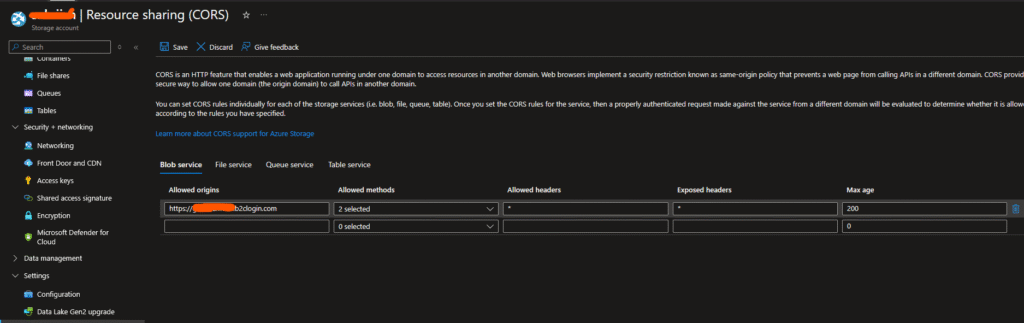
The custom HTML file must be hosted on a publicly accessible HTTPS endpoint. In this implementation, Azure Blob Storage is used:
- URL:
https://{your_Storage}.blob.core.windows.net/krrish/B2C_ForgotPassword.html
When hosting on Azure Blob Storage, you must ensure:
- The blob container allows public access or CORS is configured for
https://{your-tenant}.b2clogin.com. - The file is served over HTTPS.
- The HTML file follows the Azure AD B2C page layout contract requirements (it must contain a
<div id="api"></div>element where B2C injects its content).
Summary:
By reducing the user experience concern to a targeted solution, we have implemented two changes to hide the “Change Email” button in the Azure AD B2C forgot password flow:
- Extension File: Defined the
api.localaccountpasswordresetcontent definition to reference a custom page layout via theLoadUrielement, along with a validDataUripage contract version (selfasserted:2.1.21). - Custom Page Layout (B2C_ForgotPassword.html): Added CSS rules that use a combination of specific ID selectors, class selectors, and attribute selectors to hide the “Change Claims” button rendered by the Display Control.
This approach ensures that after a user verifies their email during the password reset flow, they proceed directly to enter a new password without the confusing “Change Email” option. The solution is purely CSS-based and does not require any changes to the Display Control configuration or the user journey orchestration steps.
